
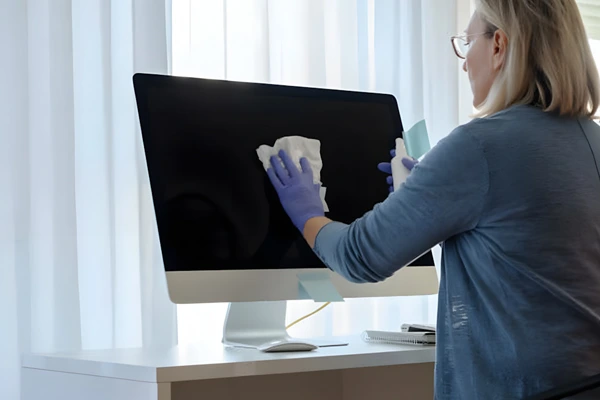
A clear screen is not just about aesthetics; it’s crucial for an optimal viewing experience. With the variety of monitors available, from LCD to OLED, understanding the best way to maintain your display is essential.
Improper cleaning techniques can damage sensitive surfaces, making it vital to follow a reliable guide. This introduction to our step-by-step guide on how to clean a computer monitor effectively will walk you through the process, ensuring your computer display remains in top condition.
By following our guide, you’ll not only enhance your viewing experience but also prolong the lifespan of your monitor. Let’s dive into the world of pristine screens and explore the proper methods for a smudge-free display.
Table of Contents
Why Regular Monitor Cleaning Is Important
A clean monitor not only ensures a healthier workspace but also extends the lifespan of your device. Regular cleaning is a simple yet effective way to maintain your screen‘s quality and functionality.
Health and Hygiene Benefits
Monitors can harbor dust and germs, potentially leading to health issues. Regularly cleaning your monitor helps prevent the buildup of these harmful particles.
- Dust and germ accumulation can be reduced significantly with regular cleaning.
- A clean screen contributes to a healthier workspace environment.
- Preventing dust buildup helps maintain better air quality around your workspace.
Extending Your Monitor’s Lifespan
Besides health benefits, cleaning your monitor regularly can extend its operational life. Dust buildup can cause components to overheat, potentially leading to premature failure.
- Regular cleaning can significantly extend your monitor‘s functional lifespan, potentially adding years to your investment.
- Dust obstruction can cause components to overheat, leading to premature failure of internal electronics.
- Using quality cleaning products designed for electronics helps preserve special coatings that protect your screen.
- Manufacturers often cite improper cleaning as a reason for voided warranties on monitor products.
- Preventive maintenance is always less expensive than replacing a damaged monitor prematurely.
Essential Supplies for Cleaning Computer Monitors
The right cleaning supplies are essential for maintaining your computer monitor’s clarity and longevity. Using the appropriate materials will help prevent damage and ensure a streak-free screen.
Microfiber Cloths: The Safe Choice
Microfiber cloths are the recommended tool for cleaning computer screens. They are gentle, effective, and can be used dry or dampened with a cleaning solution. When choosing a microfiber cloth, look for one that is specifically designed for electronics.
Cleaning Solutions: What’s Safe to Use
Not all cleaning solutions are suitable for computer monitors. Avoid using household cleaners or those containing ammonia or alcohol, as they can damage the screen’s protective coatings. Instead, opt for distilled water or a specialized LCD cleaning solution.
What to Avoid: Materials That Damage Screens
Certain materials can cause irreversible damage to your monitor’s screen. Here are some common mistakes to avoid:
- Never use paper towels or tissues, as their wood fibers can cause micro-scratches.
- Avoid using regular household cloths, especially those treated with fabric softeners, which can leave streaky residues.
- Refrain from using abrasive cleaning pads or rough materials that can permanently damage the screen.
- Be cautious not to apply excessive pressure, which can cause pixel damage in LCD screens.
- Never spray any liquid directly onto the screen, as it can seep into the edges and damage internal components.
- Window cleaners containing ammonia or alcohol will strip protective coatings from most modern screens.
- Avoid using compressed air too close to the screen, as the force and temperature can damage sensitive pixels.
- Cotton swabs can leave behind fibers and should be avoided for screen cleaning.
- Household all-purpose cleaners often contain harsh chemicals that can cause irreversible damage to monitor surfaces.
Preparing Your Monitor for Cleaning
Before you start cleaning your monitor, it’s essential to prepare it properly to avoid any damage. This preparation involves a couple of crucial steps that ensure your safety and the longevity of your device.

Power Down and Unplug for Safety
The first step in preparing your monitor for cleaning is to power it down and unplug it from the power source. This is a critical safety precaution that prevents any accidental start-ups or electrical shocks during the cleaning process. Always ensure your monitor is turned off and unplugged before you begin cleaning.
Identifying Your Monitor Type
Different monitors have different screen types, such as LCD, OLED, or glass-covered screens, each requiring specific cleaning approaches. Identifying your monitor type is crucial for choosing the right cleaning method.
- LCD screens are more delicate and require gentler cleaning methods with less moisture.
- OLED screens have organic components that can be damaged by harsh chemicals or excessive pressure.
- Glass-covered screens can tolerate slightly more moisture during cleaning but still require care.
- Touchscreens need special consideration to remain responsive after cleaning.
To identify your monitor type, you can check your monitor’s documentation or visit the manufacturer’s website. Understanding your screen type will help you choose the appropriate cleaning solution and method.
| Monitor Type | Cleaning Method | Special Considerations |
| LCD | Gentle wiping with a microfiber cloth | Avoid excessive moisture |
| OLED | Soft cloth, minimal pressure | Avoid harsh chemicals |
| Glass-Covered | Slightly damp microfiber cloth | Be cautious with moisture levels |
By understanding your monitor’s screen type and following the appropriate cleaning method, you can effectively clean your monitor without causing damage.
How to Clean a Computer Monitor with Dry Methods
To keep your computer monitor in top condition, it’s essential to master dry cleaning techniques. Dry methods are not only effective but also safe, reducing the risk of damage to your screen.
Dusting Techniques for Daily Maintenance
Daily dusting is a simple yet effective way to maintain your monitor’s clarity. Use a dry microfiber cloth to gently wipe away dust particles from the screen. This method is gentle and prevents scratches.
- Start by turning off your monitor to avoid any accidental inputs.
- Gently sweep the microfiber cloth across the screen in straight lines or circular motions.
- Pay particular attention to the edges and corners where dust tends to accumulate.
Using Microfiber Cloth for Light Cleaning
For light cleaning beyond simple dusting, a slightly dampened microfiber cloth can be used, but it’s crucial to follow the right steps to avoid damage.
- Dampen the microfiber cloth with distilled water, ensuring it’s not soaking wet.
- Gently wipe the screen in a circular motion or straight lines, covering the entire surface.
- Focus on areas with visible fingerprints or smudges, often found in the center or edges of touchscreens.
- Follow up with a dry microfiber cloth to remove any remaining moisture and prevent streaking.
For most screen types, this light cleaning approach is safe and effective. It’s your go-to method before attempting more intensive cleaning.
Inspect your work from different angles and under various lighting conditions to ensure all smudges have been removed. This attention to detail will help maintain your monitor’s clarity and performance.
Liquid Cleaning Methods for Stubborn Smudges
When dry methods aren’t enough, liquid cleaning methods can help tackle stubborn smudges on your LCD screen. For more persistent marks, it’s essential to use the right liquid cleaning technique to avoid damaging your monitor.
Distilled Water: The Safest Option
Distilled water is the safest liquid for cleaning LCD screens. It’s free from minerals and other contaminants that can leave streaks or spots on your screen. Dampen a microfiber cloth with distilled water, but make sure it’s not soaking wet, as excess moisture can seep into the screen’s edges or harm the display.
Vinegar Solutions for Tougher Cleaning
For tougher smudges, a solution of equal parts distilled water and white vinegar can be effective. The acid in the vinegar helps break down stubborn marks. However, it’s crucial to avoid using too much vinegar, as it can damage certain screen coatings. Always apply the solution to a microfiber cloth, not directly to the screen.
Commercial LCD Cleaners: When to Use Them
Commercial LCD cleaners are specifically designed to clean screens without damaging sensitive coatings or components. These products are best used when water or vinegar solutions fail to remove stubborn marks. When selecting a commercial cleaner, look for products labeled as safe for LCD screens and avoid multi-purpose cleaners.
Key Benefits of Commercial LCD Cleaners:
- Specifically formulated for LCD screens
- No alcohol, ammonia, or acetone, which can damage screen coatings
- Some products include anti-static properties to repel dust
- Convenient, though generally more expensive than homemade solutions
When using commercial LCD cleaners, follow the product’s instructions carefully. Many come in spray bottles, but it’s still recommended to apply the cleaner to a microfiber cloth rather than directly to the screen. If you frequently clean multiple screens or devices, a commercial cleaner might be worth the investment for consistency and convenience.
Special Considerations for Different Screen Types
To clean your screen properly, it’s crucial to identify its type first. Different screens have unique characteristics that require specific cleaning methods to avoid damage and maintain their functionality.
LCD Screens: Extra Precautions
LCD (Liquid Crystal Display) screens are common in modern monitors and TVs. They are generally more delicate than other types of screens and require careful cleaning. Avoid applying too much pressure, which can damage the liquid crystals. Use a soft, dry microfiber cloth for daily dusting. For more thorough cleaning, slightly dampen the cloth with distilled water, but never spray water directly on the screen.
Glass-Coated Screens: What You Can Use
Many modern screens are coated with a layer of glass, making them more durable and easier to clean. For glass-coated screens, you can use a slightly damp microfiber cloth. If there are stubborn smudges, a 50/50 mix of distilled water and white vinegar on the cloth can be effective. However, avoid using harsh chemicals or abrasive materials that could scratch the glass.
Touchscreens: Balancing Cleanliness and Functionality
Touchscreens present unique cleaning challenges as they accumulate fingerprints and smudges more quickly through regular use. To maintain both appearance and touch sensitivity, clean touchscreens more frequently than standard displays. Use wipes that are specifically designed for touchscreens, and for devices like tablets and smartphones, use manufacturer-approved wipes. After cleaning, test the screen’s responsiveness to ensure no residue is interfering with touch functionality.
Consider using screen protectors on heavily used touchscreens to make cleaning easier and protect the original surface. Some touchscreens have oleophobic (oil-resistant) coatings that can be damaged by harsh cleaning products, so it’s essential to use gentle cleaning methods.
| Screen Type | Recommended Cleaning Method | Products to Avoid |
| LCD Screens | Soft, dry microfiber cloth; slightly dampened with distilled water | Harsh chemicals, abrasive materials |
| Glass-Coated Screens | Damp microfiber cloth; 50/50 water and vinegar mix | Abrasive materials, harsh chemicals |
| Touchscreens | Manufacturer-approved wipes; gentle cleaning products | Harsh chemicals, abrasive wipes |
Step-by-Step Cleaning Process
To achieve a streak-free finish on your monitor, follow a meticulous cleaning and drying process. This ensures that your screen remains clear and free from damage.
Top-to-Bottom Wiping Technique
Begin by using a microfiber cloth to gently wipe the screen from the top downward. This methodical approach helps prevent dirt and dust from being spread across the screen, reducing the risk of streaks. Using a dry microfiber cloth is ideal for this initial step, as it effectively removes loose particles without leaving moisture behind.
Dealing with Stubborn Fingerprints and Smudges
For more persistent marks, slightly dampen a microfiber cloth with distilled water. Gently wipe the affected areas, working from the top down. Avoid applying too much pressure, which can damage the screen. If the smudges persist, consider using a specialized LCD cleaning solution applied to the cloth, not directly to the screen.
Drying and Final Inspection
Proper drying is critical to achieving a streak-free finish. Use a clean, dry microfiber cloth specifically reserved for the final drying process. Work from the top downward, paying special attention to edges and corners where moisture can accumulate. Inspect the screen from multiple angles and under different lighting conditions to identify any remaining streaks. If necessary, make a final pass with a dry cloth to ensure the screen is completely dry and streak-free.
- Use a clean, dry microfiber cloth for the final drying process to prevent additional dust or oils from being introduced.
- Pay special attention to edges and corners where moisture can accumulate and cause streaking.
- Inspect the screen from multiple angles to identify any remaining streaks or smudges.
- For persistent streaks, a final pass with a completely dry microfiber cloth using very light pressure often resolves the issue.
- Allow the screen to air dry completely before powering it back on.
By following this step-by-step process, you can ensure your monitor screen is clean, dry, and free from streaks, maintaining its clarity and performance.
Common Mistakes to Avoid When Cleaning Monitors
To maintain your monitor’s quality, it’s crucial to avoid common cleaning mistakes that can harm the display. Cleaning your monitor is not just about removing dust and smudges; it’s about doing so without causing damage to the screen.
Spraying Liquids Directly on Screens
One of the most significant mistakes is spraying cleaning liquids directly onto the screen. This can lead to liquid seeping into the monitor’s edges or harming the display. Instead, apply the cleaning solution to a microfiber cloth first.
- Avoid using household cleaners that contain ammonia or other harsh chemicals.
- Never spray liquid directly on the screen.
- Use distilled water or a specialized screen cleaning solution.
Using Excessive Pressure
Applying too much pressure while cleaning can scratch or damage the screen. It’s essential to clean gently, allowing the cleaning cloth to do the work.

Choosing the Wrong Cleaning Products
Using the wrong cleaning products can cause irreversible damage. Avoid products containing alcohol or ammonia, as they can strip away protective coatings on the screen.
| Cleaning Product | Safety for Monitors |
| Household Glass Cleaners (e.g., Windex) | No |
| Alcohol-based Cleaners | No |
| Distilled Water with Microfiber Cloth | Yes |
| Specialized LCD Cleaners | Yes |
The best way to clean most screens is with minimal products-often just a microfiber cloth and distilled water. When in doubt about a cleaning product, check the manufacturer’s recommendations or default to the simplest option.
Maintaining a Clean Monitor for Optimal Performance
To ensure your monitor continues to perform optimally, regular maintenance is key. A well-maintained screen not only enhances your viewing experience but also prolongs the lifespan of your device.
Regular maintenance is the best way to keep your monitor clean while minimizing the need for intensive cleaning sessions. Establish a routine dusting schedule using a dry cloth to prevent the buildup of dust and debris. Positioning your monitor away from open windows, air vents, and high-traffic areas can also reduce dust accumulation.
Additional measures include using a monitor cover when not in use, especially in dusty environments, and keeping eating and drinking away from your workspace to prevent food particles and liquid splashes on the screen. For touchscreens, washing your hands before use can reduce oil transfer and fingerprint buildup.
Proper storage of cleaning supplies in a clean, dust-free container is also crucial to prevent contamination. Replacing microfiber cloths when they become visibly dirty or lose effectiveness is recommended. For professional environments, consider scheduling quarterly deep cleaning sessions in addition to regular maintenance.
You Might Also Enjoy: Buy Best Buy Laptops: Top Models, Reviews & Prices